Learn · MIDI · DOLMEN
How to write a melody or chord part with a generative MIDI engine
A generator that gives you something new every press has one problem: the good bar is gone as soon as you press again. The way round it is to keep what works and roll the rest. Here is that method, using DOLMEN. The ideas apply to any MIDI generator.
1. Load it in front of a sound
DOLMEN makes no sound of its own. It writes MIDI for a synth to play. In Logic Pro it sits in the MIDI FX slot above an instrument. In Live it goes on its own MIDI track and sends notes to a second track. The install guide has the steps.
2. Set the key, scale, genre and mode
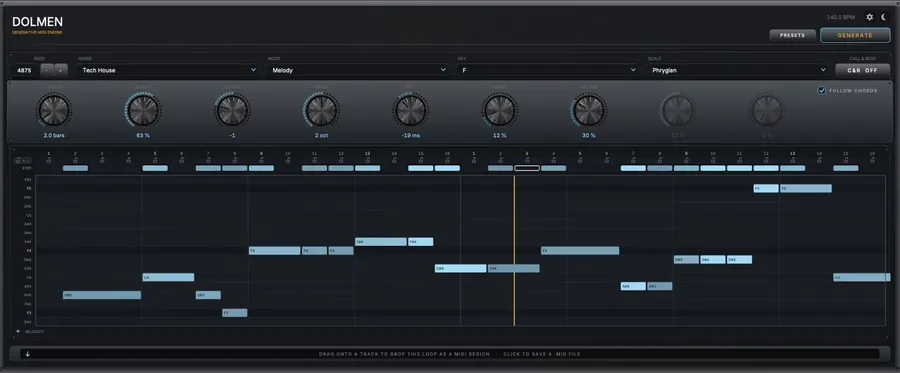
Choose the key your track is in, then one of eight scales. Pick a genre from the eleven on offer. Each was measured from real MIDI files, so the note lengths, velocities and rhythm placement come from actual records. Then pick the mode, which decides what kind of part is written: chords, melody, pluck or arp, bass or stabs. Each mode has its own register and rhythm.
3. Press Generate and listen
Each press rolls a new pattern. The seed is the pattern’s identity. The same seed with the same settings always gives the same result, so a pattern you liked is a number you can write down.

4. Lock what works
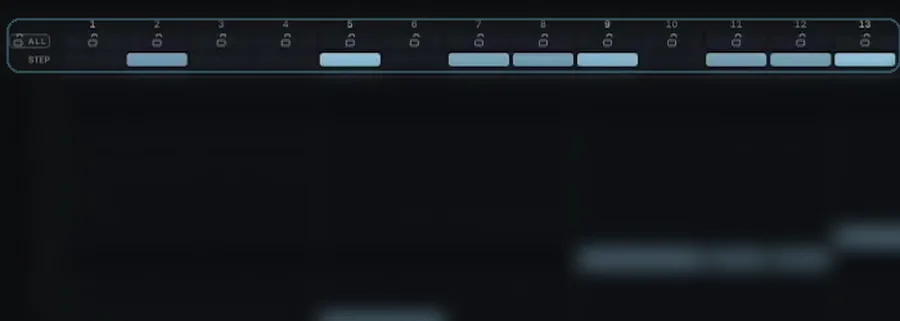
Click a step in the lock row to keep its note. A locked note survives Generate and every knob move, follows you when you change key, and saves with the project. The ALL button locks everything at once. A locked silence counts too, so you can carve out a gap and keep it while everything around it changes.
Lock four notes you like, press Generate, and keep going. You build the bar one decision at a time, and each decision holds.
5. Shape the part
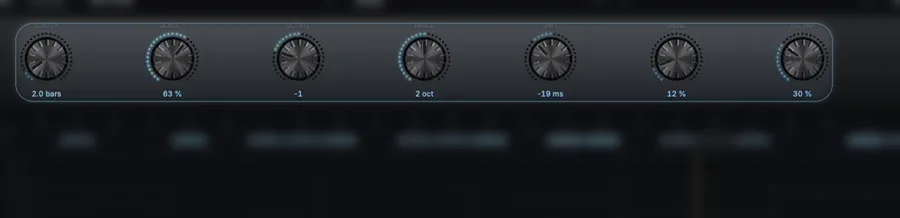
Density sets how busy the bar is. It picks a busier or sparser bar from the genre’s measured bank, so every setting gives you a bar somebody actually played. Range limits how far the part travels from its root: one octave suits a bassline, and a lead usually wants two. Vel Var sets how much the velocities move. Shift nudges every note early or late by up to 64 ms to sit the part in front of or behind the kick. Swing is often best left at zero, since most of these genres are played straight.
6. Try Call and Response
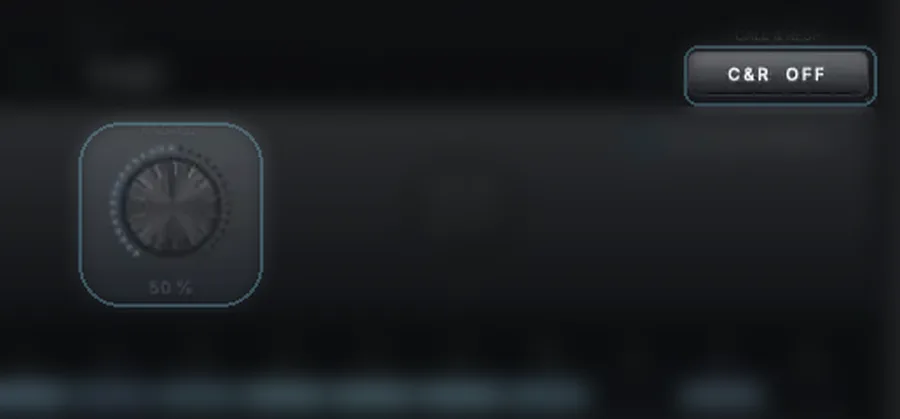
Switch on C&R and phrases come in pairs. The first bar asks something and the second answers it, and the two stay related. Set it to Call or Response to hold one half and roll the other. Keep the call you like and roll only the response until it replies the way you want. The Answer knob sets how far the response may depart from the call.
7. Fix the details by hand
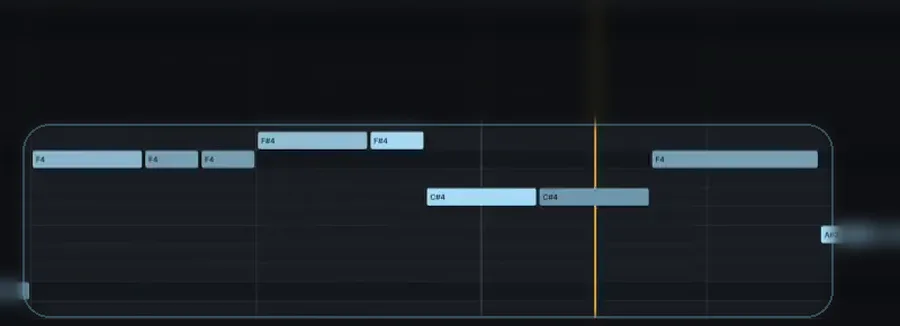
Drag a note up or down and it moves within the scale, so it cannot land out of key. Drag a note’s right-hand edge to change its length. The velocity lane lets you set each note’s strength, and in Chords mode every note of a voicing gets its own bar. These edits are fine-tuning, so lock what you want to keep before you press Generate again.
8. Take it into your arrangement
When you have something, drag it from the strip at the bottom straight onto a track. What you get is an ordinary MIDI region that you edit like something you played.